DDC/CI
Real hardware brightness
Talks to your monitors over DDC/CI, the same channel as their own buttons, so the backlight changes, not a dimmed picture. Laptop screens work too.
v0.1.5 preview · free for Windows
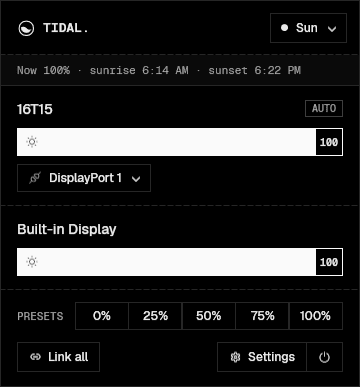
Tidal changes the real brightness of your external monitors, right from the tray. Sliders, keyboard shortcuts, and brightness that follows the sun, without digging through monitor buttons.
64-bit · Installs per user · No telemetry
[ Features ]
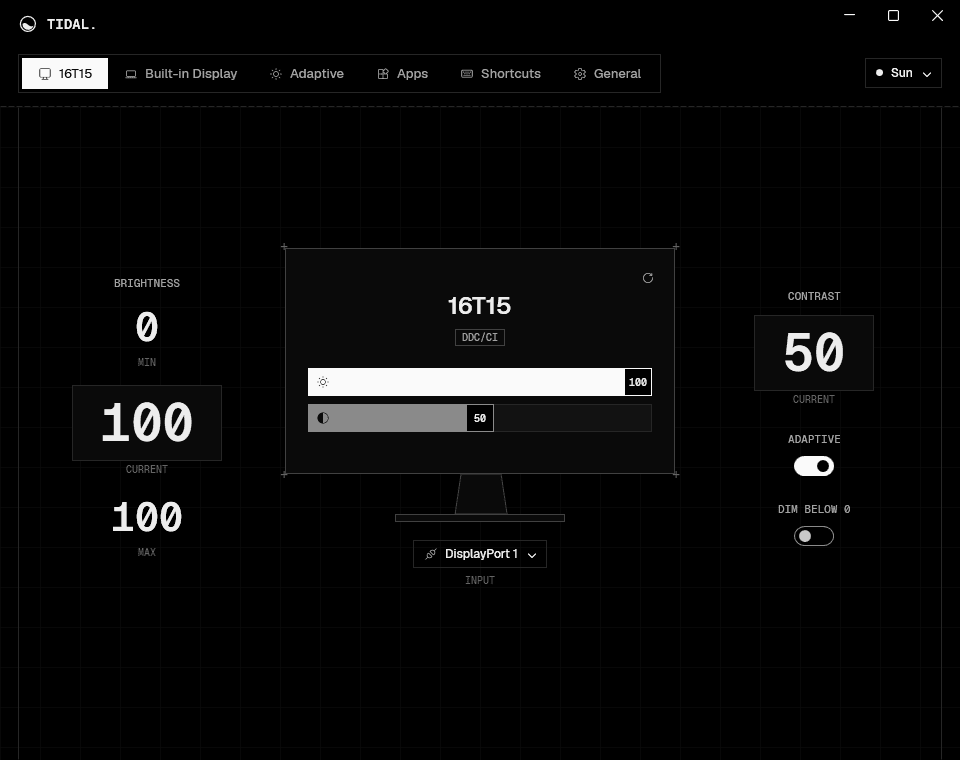
One place for every screen you plug in, with the controls the on-screen menu buries.
Talks to your monitors over DDC/CI, the same channel as their own buttons, so the backlight changes, not a dimmed picture. Laptop screens work too.
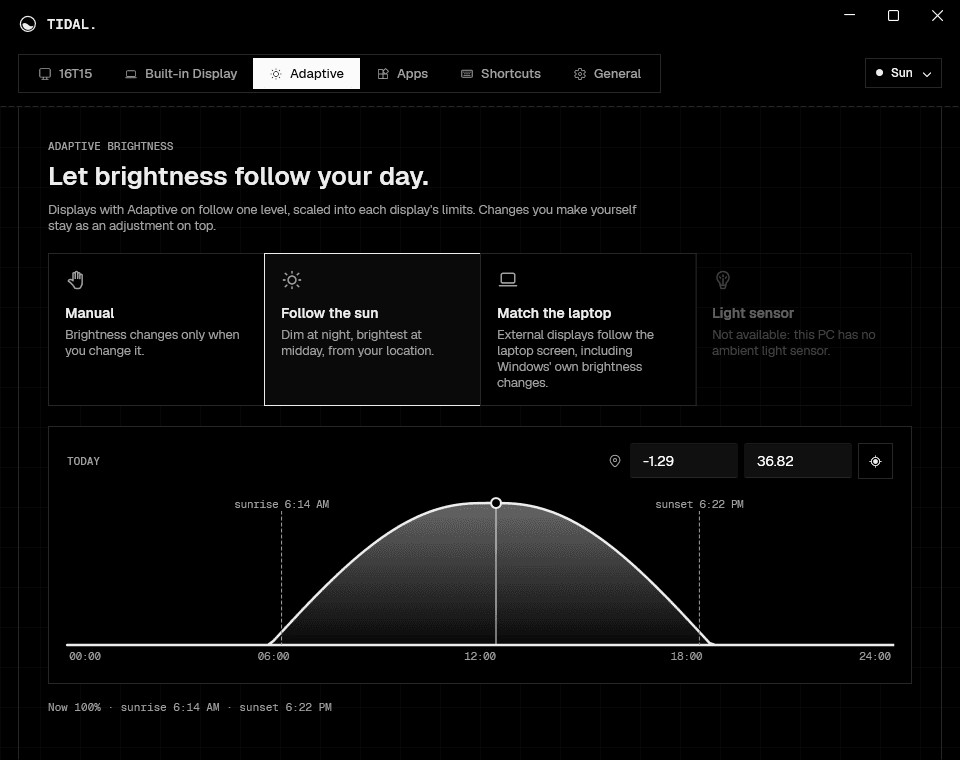
Dim at night and brightest at midday, worked out offline from your location. Or let external screens match the laptop, or a light sensor.
Turn on Dim below 0 and keep going past a monitor's lowest brightness, in software. Monitors without DDC/CI get a slider that dims them the same way.
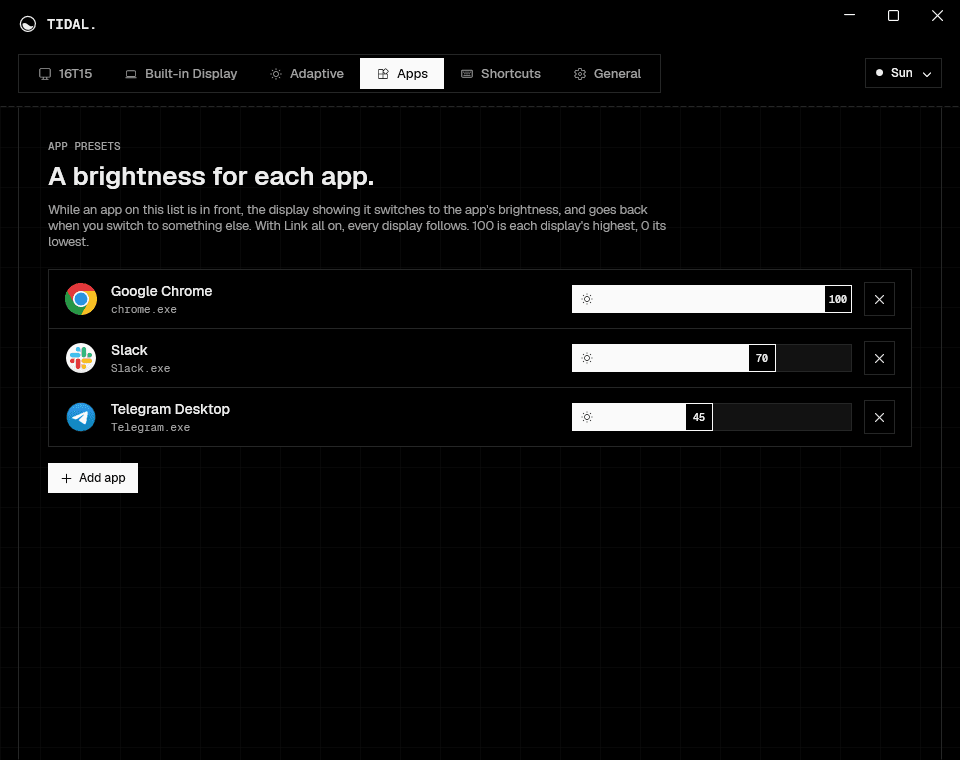
Give your video player, a game or anything else its own brightness. The screen showing it switches while it's in front, and goes back when you switch away.
Move every display together, each within its own range, so a bright monitor and a dim laptop stay matched.
Set a lowest and highest brightness for each display. Sliders, shortcuts, presets and adaptive brightness all stay inside it.
Switch a monitor between DisplayPort, HDMI and USB-C, and set its speaker volume, when the monitor supports it.
One click away, in light and dark mode, with a small level on screen when you use the keys. It tells you plainly when a display can't be controlled.
No account, no analytics, no telemetry. Sunrise and sunset are calculated on your PC, and settings are a file you own.
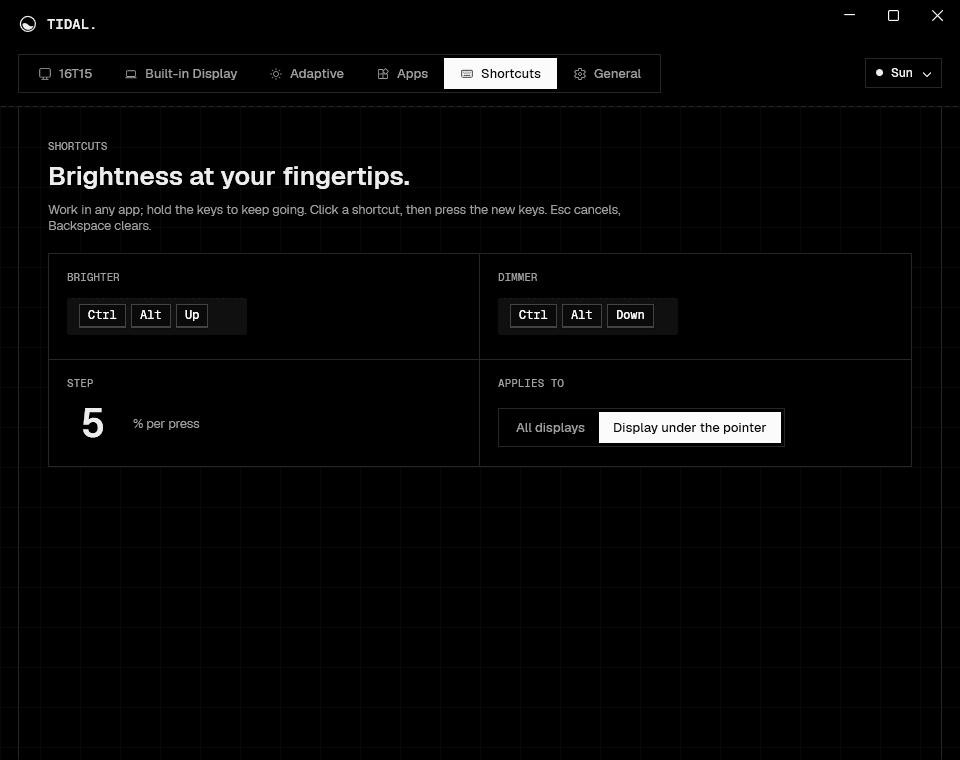
[ Shortcuts ]
Press the keys in any app and hold them to keep going. A small level appears on each display as it changes. Record your own keys in Settings.
[ Download ]
Version 0.1.5 · preview
Windows may say Windows protected your PC
: this preview isn't code-signed yet. Click More info, then Run anyway.
Most external monitors from the last decade support DDC/CI, the standard Tidal uses. If one doesn't respond, turn on DDC/CI in the monitor's on-screen menu, or connect it directly instead of through a dock, KVM switch or adapter. Wireless and DisplayLink displays can't be controlled this way, so Tidal dims them in software instead. Laptop screens use Windows' own brightness control. Tidal shows which method each display uses, and why when one can't be controlled.
Windows SmartScreen warns about apps that aren't code-signed and aren't yet widely downloaded. This preview isn't signed yet. Click More info, then Run anyway.
Only if you choose Follow the sun and press the location button; you can also type coordinates. The location is rounded to about a kilometre, stays on your PC, and sunrise and sunset are calculated offline.
No. There's no account, no analytics and no telemetry. Settings are saved in a file on your PC. The only thing Tidal asks the internet is whether GitHub has a newer version, which you can turn off in Settings › General.
From version 0.1.5, Tidal updates itself: it checks for a new version every few hours, downloads it in the background and installs it when you click Restart in its popup, or the next time it quits. Older versions: download the installer again and run it.
Tidal starts with Windows and lives in the notification area. On Windows 11, click the ^ arrow next to the clock and drag its icon onto the taskbar to keep it handy. You can turn off starting with Windows in Tidal's Settings › General. To remove Tidal: Settings › Apps › Installed apps › Tidal › Uninstall.